
Caldwell SI · Ideation Studio
Brainstorm
Develop your film with Grok Build and the Main Idea field — the brain of this page — then walk through title, genre, script, cast, assets, and soundtrack. Send everything into Super Creation with scenes ready to produce.
Brainstorm sessions
Save this page under a name, then re-open it after you log out. Auto-saves once every 5 minutes.
Same Save as the button at the bottom of the page. Delete moves a session to Trash.
No saved Brainstorm sessions yet. Name this one and click Save session.
Grok Build
High-power film development engine. Grok Build and the Main Idea field form the brain of this page: every Auto Fill and Auto Create action reads both so cast, assets, script, and score stay aligned with your premise.
Check Identify Assets to label every production piece on the script and nest sub-assets (rooms, night, wrecked, foyer) under the main asset they belong to. The Asset list then knows which children sit under each main.
Grok Build + Main Idea power the entire page. Auto Fill (here or on Main Idea) and every section Auto Create read both. Identify Assets writes MAIN / SUB labels onto the script so the Asset list can nest sub-assets under each main. No character limit — paste a full outline or script. Shift+Enter for a new line · Enter to send.
Script File Cabinet
A private script library for this account. Create a folder for each scene, save Grok Build answers (or paste pages you write), copy them out, and drop them back into Grok Build when you continue the story.
Opens in its own window. Folders and scripts are saved to your Caldwell SI account.

Name of the Movie
Give your film a working title. You can refine it anytime — Super Creation will pick this up as the project name.
No character limit. Main Idea + Grok Build drive Auto Fill, Auto Create, and Super Creation handoff.
Type of Movie
Choose a category and subcategory — 313 professional genre options guide auto-create for script, cast, and score.
The Script
Write your screenplay, or hit Auto Create Script — Grok reads Grok Build, the title, genre, and Main Idea (plus any cast and assets already on the page) and drafts every scene for the full movie. Use markers like ======== STORY SCENE 1 ======== so Super can split scenes cleanly.
Script · Main Idea · Grok Build
Cast & Asset Lists
Load names from the script, Main Idea, and Grok Build. Sub-assets nest under a main box automatically when the script has variants. Drag a row under a main asset, or use +. Check Consistent so that lane uses the first picture as the reference.
Character List
0 names — Consistent keeps that one character on the first picture.
- No names yet — Load from story or add a character.
Asset List
0 names — + adds a smaller subname box under that asset. Drag a row under a main asset. Delete removes that box.
- No names yet — Load from story or add an asset.
The Characters
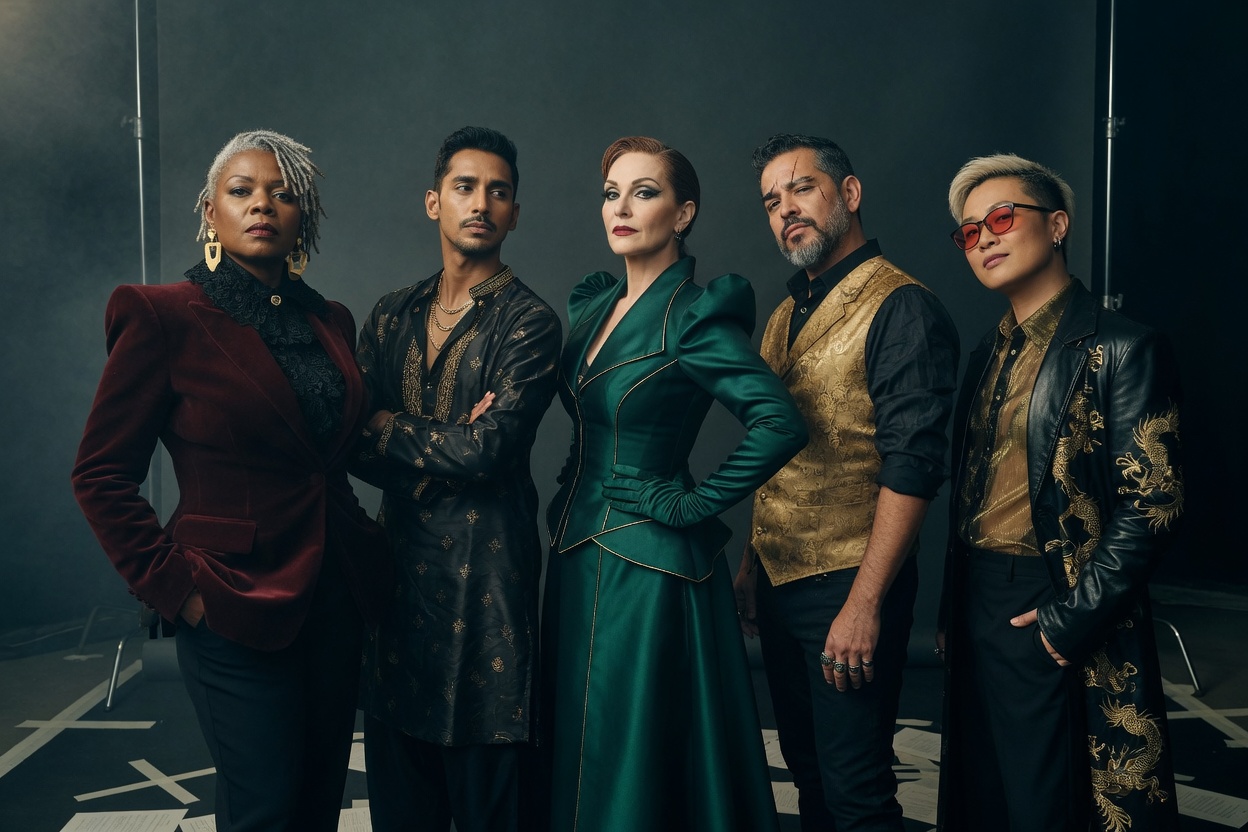
Up to 100 cast members. Check the boxes you want, then Create — each checked slot gets a name, role, and portrait. Delete clears whichever boxes are checked. Image Studio opens the photo editor for that box — crop, color, and AI edit, then Save to put the picture back. Click a box to open its picture window: unlimited stills plus up to 24 outfits. Grok locks one outfit per story scene.
The Assets
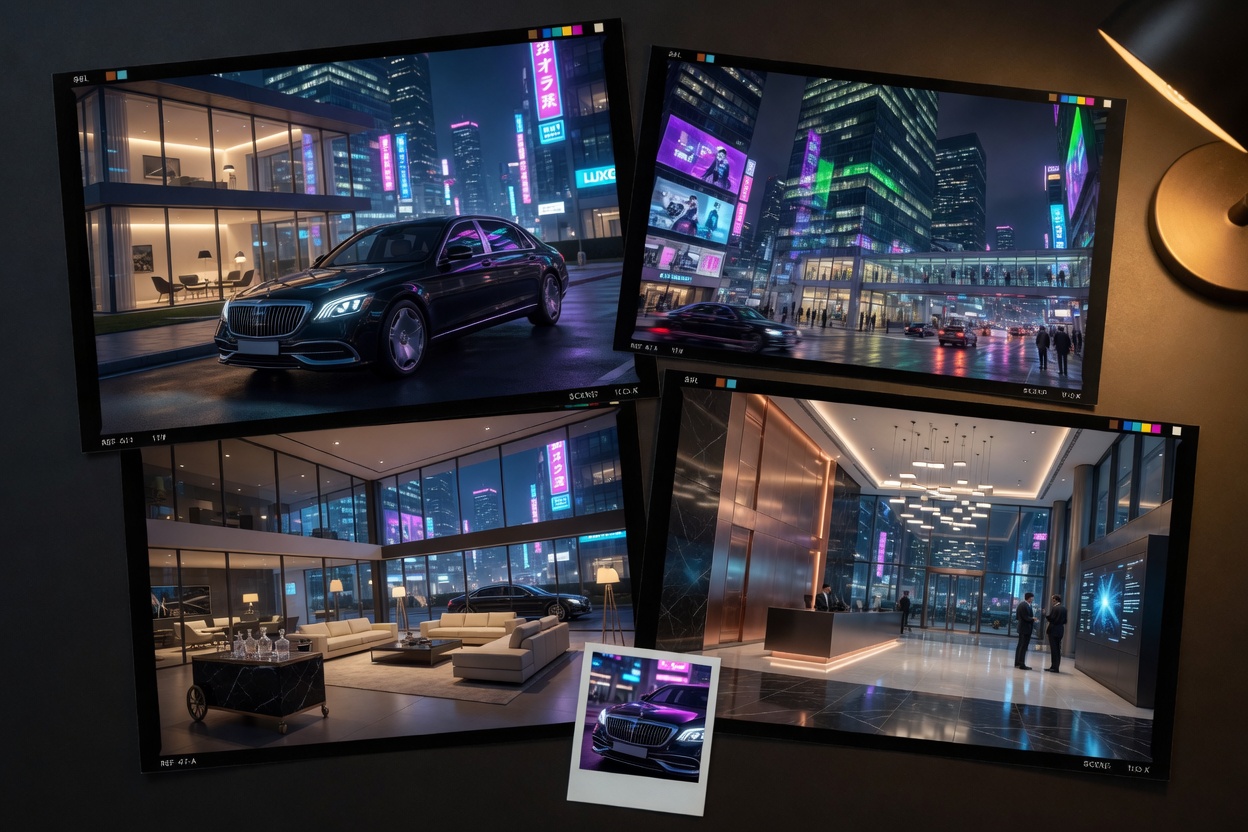
Locations, cars, houses, businesses, and more — 100 slots. Check the boxes you want, then Create — each checked slot gets a name, role, and picture. Delete clears whichever boxes are checked.Image Studio opens the photo editor for that box — crop, color, and AI edit, then Save to put the picture back. Click a box for unlimited stills plus 24 variation boxes (clean house, dirty house, night…). Grok locks one variation per story scene.
Music / Soundtrack
100 soundtrack slots. Check the boxes you want, then Create — each checked slot gets a title, style, and song. Delete clears whichever boxes are checked. Create reads your script so every cue fits the film.
Storyboard
Puts the movie together as clips — the same speaking-word budget Super Creation uses (only words inside "" count). Each clip gets a scene description plus the character and asset stills that belong on that beat. After it builds, edit any clip: description, pictures, quoted lines, and which character says each line. Save the board, then Create the Movie sends that saved version.
15s clips · 30 speaking words in "" per clip · 5s = 10 words · 10s = 20 · 12s = 24 · 15s = 30 · 20s = 40 · 25s = 50 · 30s = 60 words

Create the Movie
Sends the saved Step 7 storyboard — edited descriptions, tagged dialogue, character and asset pictures — to Super Creation. Pictures land in Super Creation Assets (not the reference strip). The script fills the Super script box and each story scene on the scene dropdown.
We recommend you Save Project first. It writes this session to the list at the top of the page so you can re-open it after you log out.